User Guide
Introduction
Are you a new NUS student that’s not sure what food options there are in NUS?
Or perhaps, are you stuck on what to eat for lunch?
Presenting to you, NUSEatWhere’s Food Guide! NUSEatWhere is a desktop application that stores
information on NUS canteens and eateries in the form of a Food Guide.
It also supports a variety of search functions and the ability to randomly generate
eateries to eat at!
NUSEatWhere is designed for all NUS Students who have a hard time remembering
all the food options in NUS and/or cannot decide on a place to eat.
Additionally, NUSEatWhere’s Command-line Interface (CLI) is optimized for fast-typists to
quickly execute complicated commands in a simple manner, and is simple to pick up for all users!
With NUSEatWhere, you can search for the available food options in NUS and make an informed decision on where to eat
faster than ever before!
Table of Contents
- Introduction
- Table of Contents
- Using the User Guide
- Quick Start
- [Data Fields] (#data-fields)
- First Glance
- Features
- FAQ
- Command Summary
Using the User Guide
This user guide aims to orientate users (such as you!) on how to install, use, and troubleshoot NUSEatWhere.
For all new users, we highly recommend you check out the Quick Start section, which covers the installation instructions and the basic features of our application.
After getting acquainted with NUSEatWhere, you should take a look at our Features section, which
lists down all of our features in detail and how they work!
Are you an experienced user that just needs a summary on how to use our application?
You might want to head on over to the Command Summary section
instead for a quick overview of all our supported commands.
Got any other burning questions? Try looking in our FAQ section!
If your queries cannot be answered, you can try contacting the development team
by referring to our About Us page or
raising an issue on our GitHub!
Quick Start
System Requirements
For the ideal experience, we recommend using NUSEatWhere on either Windows, macOS or Linux operating systems.
In addition, you will require ‘Java’ version 11 or higher to run NUSEatWhere. ‘Java’ version 11 can be downloaded from the Oracle website here. Alternatively, you can install ‘Java’ directly on your computer through package managers using the following commands:
- On Windows, using Chocolatey,
choco install jdk11 - On macOS,
brew install openjdk@11 - On Linux,
sudo apt-get install openjdk-11-jdk
Installing NUSEatWhere
-
If you haven’t done so already, install
Javaversion 11 or higher by following the instructions in System Requirements. -
Next, download the latest version of
foodguide.jarfrom here. -
Make sure to move the file to your intended home folder for the NUSEatWhere application.
-
Double-click the file to start
NUSEatWhere.
You should be greeted with an interface similar to the picture below in the First Glance section. -
You’re done setting up the
NUSEatWhere!
Go ahead and type some commands into the command box and press Enter to execute it.
e.g. typinghelpand pressing Enter will open the help window.Here are some example commands you can try: *
help: Opens a help window *list: Lists all eateries *find mala: List all eateries with ‘mala’ in its name *exit: Closes the application -
You can refer to Features below for the details of each command.
Date Fields
In our current application we storing the following data fields for each eatery.
| Field | Description |
|---|---|
| name | name of the eatery |
| price | price range of the eatery |
| location | information about the location of the eatery |
| cuisinse | the cuisinse of food served by the eatery |
First Glance
The following image describes how NUSEatWhere looks like upon opening the application.
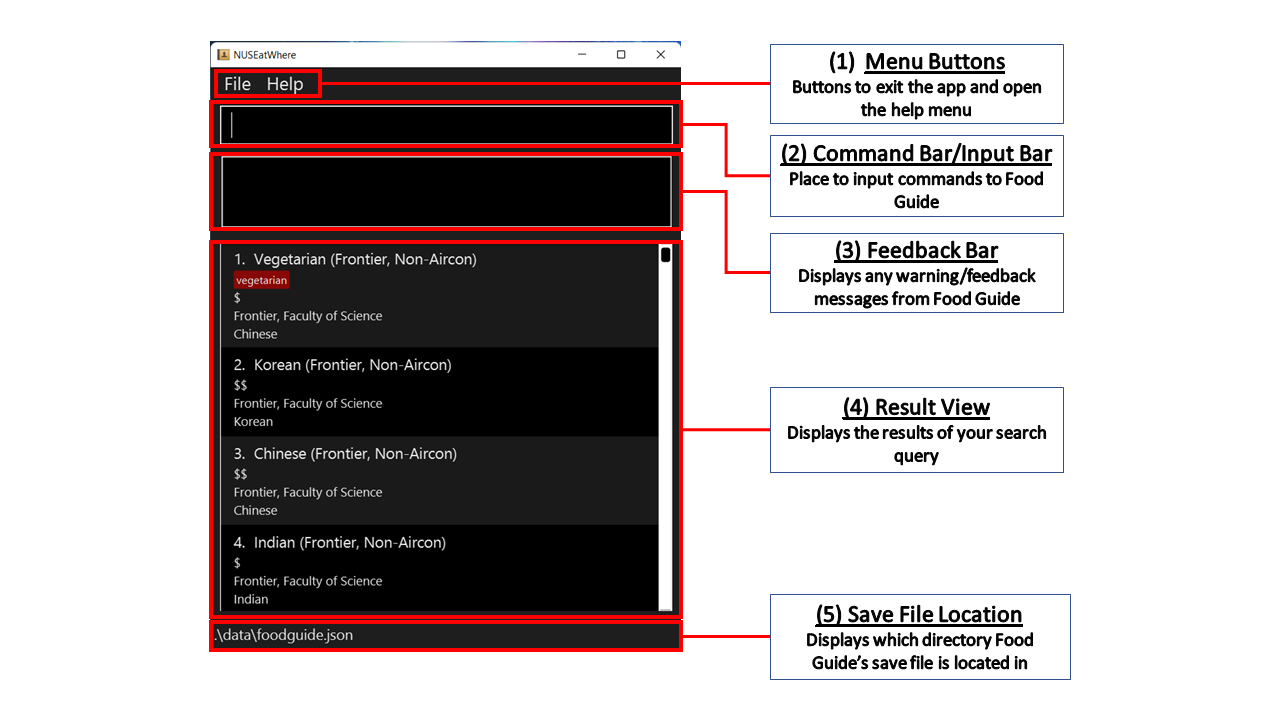
To interact with NUSEatWhere, you type commands into the Command Bar and press the ‘Enter’ key.
If the command is successfully executed, a response message will appear in the Feedback Bar. However, if there is an error in your command, a red error message will pop up instead, telling you what went wrong and how to correct it.
Features
Introduction to Our Features
This section summarizes all the commands supported in NUSEatWhere.
We highly recommend you read this section before jumping into all the features below!
-
When in doubt, you can always fall back on the
helpcommand. For most commands, you can also add-hto the back to getNUSEatWhereto generate a help message on how to use the command (e.g.find -h)! -
To show all eateries, or reset the eateries in the list to its default state, use
list. -
Make use of the various search commands (
find,findTag,findLocation,findCuisine,findPrice) to search for a specific eatery! -
Make use of our random generator by adding
-r NUMBERafter anyfindcommand. For example, runfind -r 1to generate 1 random eatery to eat at. -
Customize
NUSEatWhereto suit your needs by adding tags to your eateries. You can use thetaganduntagcommands to change the tags attached to each eatery. -
Additionally, you can use the
favandunfavcommands to mark some eateries as favourites! -
Lastly, we empower you to
add,editanddeleteeateries to and fromNUSEatWhere. This may be useful to include eateries near NUS (such as Supper Stretch!).

Important! A Note on Command Format
| Command Expression | Meaning | Example | |
|---|---|---|---|
UPPER_CASE |
Upper case inputs are needed for the command to work | In add -n NAME, NAME is an input which can be used as add -n Pasta Express
|
|
[] |
Inputs in square brackets are optional |
-n NAME [-p PRICE] can be used as -n Pasta Shop -p $ or as -n Pasta Shop
|
|
… |
Items with … after them can be used one or more times
|
find NAME… can be used as find Frontier, find Frontier Deck etc. |
|
-n, -t, -p, etc. |
Prefixed inputs can be in any order | if the command specifies -n NAME -t TAGNAME, you can also use -t TAGNAME -n NAME. Both will produce the same outcome. |
Note: For -t TAGNAME1 [-t TAGNAME2]…, the correct input format is -t mala -t vegetarian. (Multiple -ts are required)
-
If a certain input is expected only once in the command, but you specified it multiple times, only the last occurrence will be taken.
e.g. if you specify-n nameA -n nameB, only-n nameBwill be taken. -
Extra inputs for commands that do not take inputs (such as
help) will be ignored.
e.g.help 123will be interpreted ashelp. -
The special
-hparameter will provide a useful help message for how to use the command. To avoid any unforeseen behaviour, remove your other inputs when using-h. e.g.find -horadd -h.
Utility Commands
These commands deal with the general function of the NUSEatWhere application.
As such, we recommend memorizing these commands so that your experience with our
application will be as smooth as possible!
Help command : help
Displays a pop-out window listing out all the available commands & their functions.
The window also contains a link to this User Guide.
 Tip:
When in doubt, use the help feature to see the list of commands within NUSEatWhere!
Tip:
When in doubt, use the help feature to see the list of commands within NUSEatWhere!
Format: help
Listing all eateries : list
Lists out all the eateries in NUSEatWhere.
If a command (e.g. find) has hidden some eateries from you,
you can simply type list to view all your eateries again.
Format: list [-h]
Inputs:
-h: displays help message (specific to list)
Exit command : exit
Closes NUSEatWhere. All information is saved beforehand.
Format: exit
Commands for Finding Eateries
These commands search the list of eateries for ones that match your criteria. All find commands support a randomizer functionality to pick out a number of eateries at random.
If there are fewer eateries matching the criteria than the number specified to the randomizer, they will all be displayed.
Please note that for all find commands:
- The searches are case-insensitive. e.g
koiwill matchKOI - Eateries matching at least one keyword will be returned.
(e.g. iffindCuisine chinese thaiis used to search within the eateries’ cuisine types, eateries that have a cuisine type of eitherchineseand/orthaiwill be listed.) - You may give a shorter version of the name as long as the spelling is correct
(e.g.find vegwill return eateries withvegetarianin their name.)
Find eateries by name : find
Search for eateries with names matching your input.
You can also quickly narrow down your choices with the randomizer feature.
Format: find KEYWORD… [-r NUMBER] [-h]
Tip:
You can leave KEYWORD empty if you are using the randomizer (-r) feature!
Inputs:
KEYWORD : the keyword(s) that must be included in the eatery name
NUMBER: how many randomly selected eateries to show (more than 0)
-h: displays help message (specific to find)
Example:
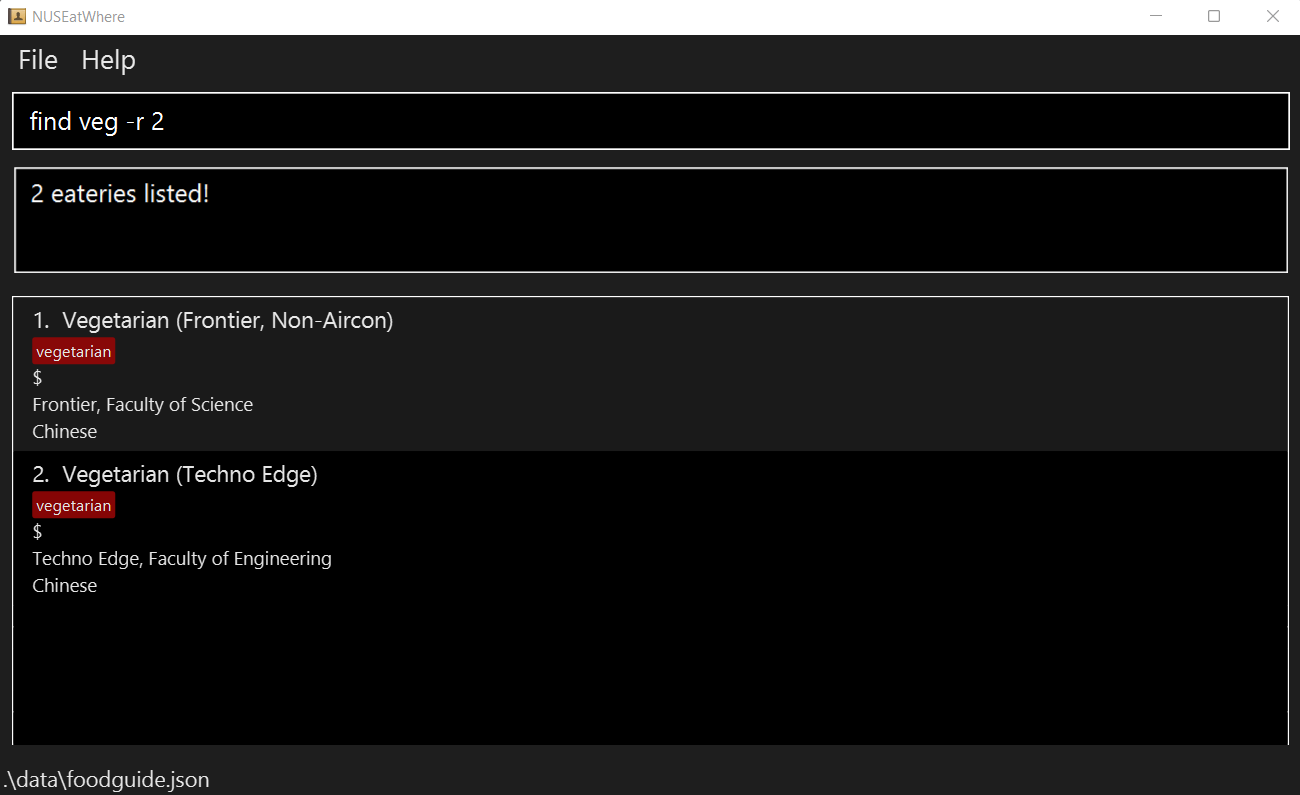
find veg -r 2
Below is an example of what the list would look like when using the randomizer -r command.
The command used is shown on the command line.
Note how only 2 random eateries with “veg” in their names are shown.
Find eateries by location : findLocation
Search for eateries that match the specified location(s).
You can also quickly narrow down your choices with the randomizer feature.
Format: findLocation LOCATIONNAME… [-r NUMBER] [-h]
Inputs:
LOCATIONNAME: the location(s) the eatery must have
NUMBER: how many randomly selected eateries to show (more than 0)
-h: displays help message (specific to findLocation)
Example:
findLocation University Town -r 2findLocation University Town
Find eateries by cuisine : findCuisine
Search for eateries that match the specified cuisine(s).
You can also quickly narrow down your choices with the randomizer feature.
Format: findCuisine CUISINENAME… [-r NUMBER] [-h]
Inputs:
CUISINENAME: the cuisine(s) the eatery must have
NUMBER: how many randomly selected eateries to show (more than 0)
-h: displays help message (specific to findCuisine)
Example:
findCuisine Chinese -r 2findCuisine Chinese
Find eateries by price : findPrice
Search for eateries that match the specified price(s).
You can also quickly narrow down your choices with the randomizer feature.
Prices can only take the values $, $$, or $$$, in increasing order of price.
Format: findPrice PRICE… [-r NUMBER] [-h]
Inputs:
PRICE: the price(s) the eatery must have
NUMBER: how many randomly selected eateries to show (more than 0)
-h: displays help message (specific to findCuisine)
Example:
findPrice $ -r 2findPrice $
Find eateries by tag : findTag
Search for eateries labelled with the specified tag(s).
You can also quickly narrow down your choices with the randomizer feature.
Format: findTag TAGNAME… [-r NUMBER] [-h]
Tip:
You can search for any number of tags by typing them all after the findTag command!
Inputs:
TAGNAME: the tag(s) the eatery must have
NUMBER: how many randomly selected eateries to show (more than 0)
-h: displays help message (specific to findTag)
Note:
- The search is case-insensitive. e.g
foodcourtwill matchFoodcourt - Eateries matching at least one tag will be returned (i.e.
ORsearch). e.g.findTag foodcourt cafewill return eateries with either tag.
Example:
findTag restaurant
Commands for Modifying Eateries
These commands are used to modify and customise the list of eateries in NUSEatWhere.
If you would like to add/remove/edit any sort of information within the application, these are the commands for you.
Feel free to personalise NUSEatWhere eatery list to your liking!
Add tag to eatery : tag
Labels an eatery with custom tag(s) to facilitate searching.
Format: tag INDEX -t TAGNAME… [-h]
Inputs:
INDEX: index of eatery to place tag on (must be found in the current list)
TAGNAME: name of tag to assign to eatery
-h: displays help message (specific to tag)
Example:
tag 1 -t coffee -t tea
Remove tag from eatery : untag
Remove tag(s) from an eatery.
Format: untag INDEX -t TAGNAME… [-h]
Inputs:
INDEX: index of eatery to remove tag from (must be found in the current list)
TAGNAME: name of tag to remove from eatery
-h: displays help message (specific to untag)
Example:
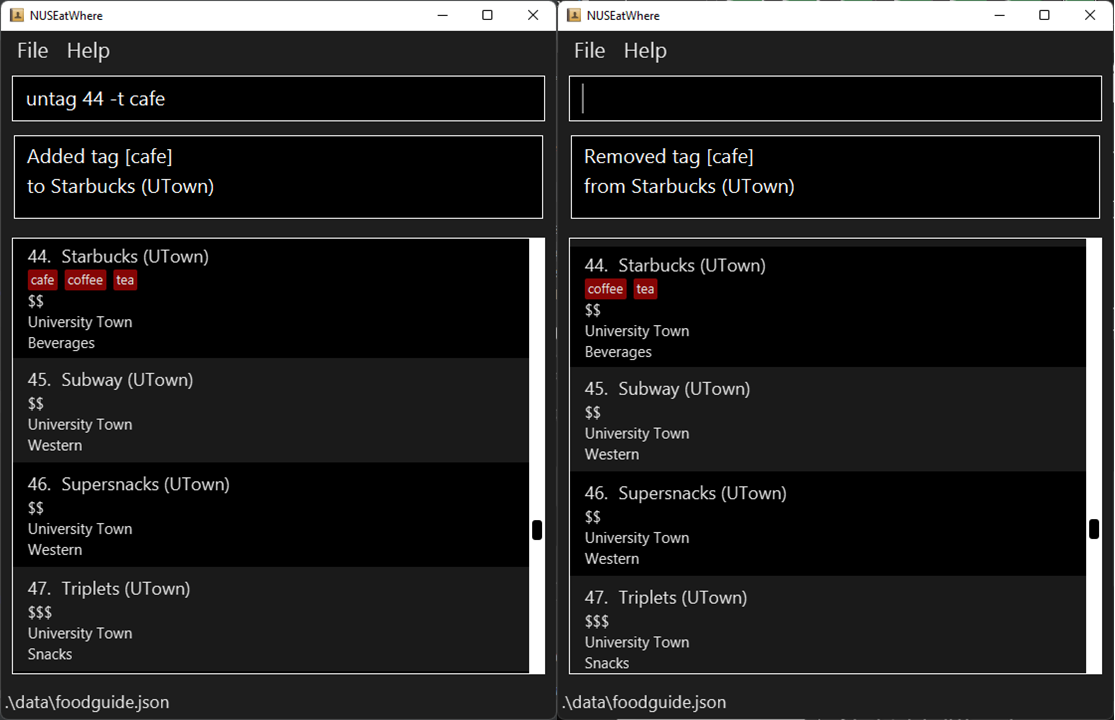
untag 44 -t cafe
Below is a comparison between when the store at index 44 is tagged with cafe (left) then untagged (right).
The commands used are shown on the command line.
Note how the red “cafe” tag on store 44 disappears after the untag command.
Favourite Eatery : fav
Favourites an eatery in NUSEatWhere.
The favourite tag is standardized to be “<3” when using this command.
Format: fav INDEX [-h]
Inputs:
INDEX: index of the eatery to favourite
-h: displays help message (specific to fav)
Example:
fav 3
Unfavourite Eatery : unfav
Unfavourites an eatery in NUSEatWhere.
The tag to be removed is standardized to be “<3” when using this command.
Format: unfav INDEX [-h]
Inputs:
INDEX: index of the eatery to unfavourite
-h: displays help message (specific to unfav)
Example:
unfav 3
Add eatery : add
Adds a new eatery to NUSEatWhere. The eatery will be added to the end of the
current list
(i.e. if the current list pre-addition has 5 eateries, the newly added eatery will be of index 6).
Format: add -n NAME -l LOCATION -c CUISINE -p PRICE [-t TAG]… [-h]
Inputs:
NAME: name of the eatery to be added
LOCATION: location of the eatery
CUISINE: cuisine type of the eatery
PRICE: price of the eatery
TAGNAME: extra tags to add to the eatery
-h: displays help message (specific to add)
Example:
add -n KOI -l Central Square -c Drinksadd -n KOI -l Central Square -c Drinks -p $$
Delete eatery : delete
Deletes an eatery from NUSEatWhere.
Format: delete INDEX [-h]
Inputs:
INDEX: index of eatery to remove from NUSEatWhere (must be found in the current list)
-h: displays help message (specific to delete)
Example:
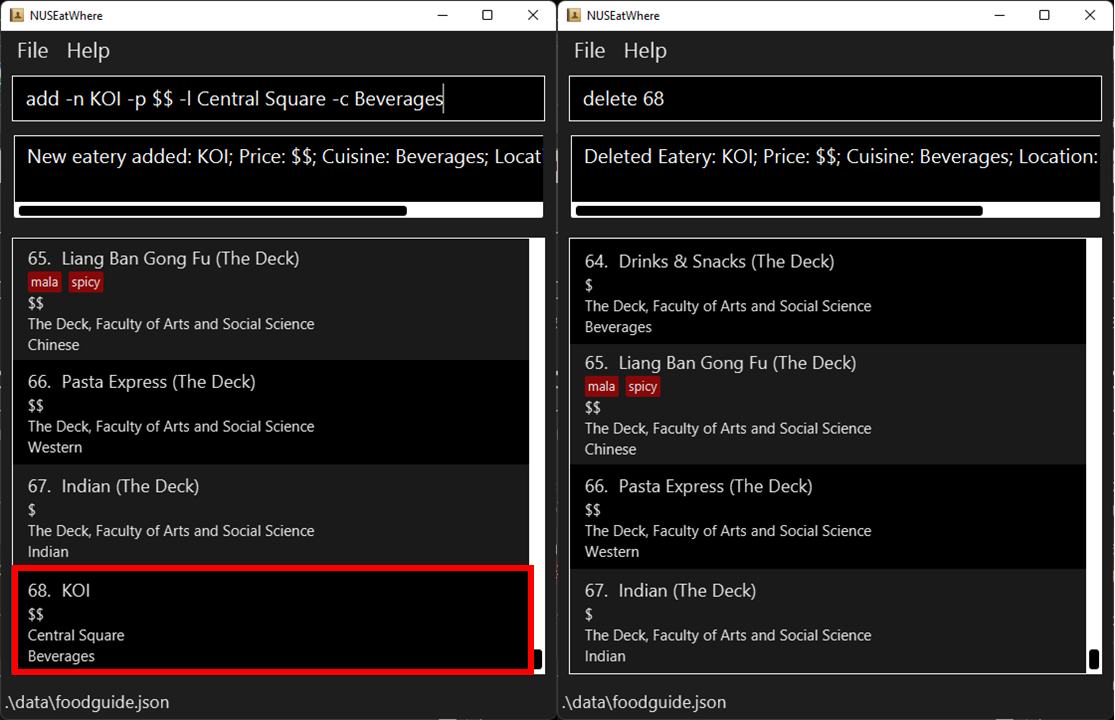
delete 68
Below is a comparison between when the store at index 68 was added (left) then deleted (right).
The commands used are shown on the command line.
Note how the eatery at index 68 disappears after the delete command.
Edit Eatery : edit
Edits the details of an eatery in NUSEatWhere.
Format: edit INDEX [-n NAME] [-l LOCATION] [-c CUISINE] [-p PRICE] [-t TAG]… [-h]
Inputs:
INDEX: index of the eatery to edit
NAME: new name of the eatery
LOCATION: new location of the eatery
CUISINE: new cuisine type of the eatery
PRICE: new price of the eatery
TAGNAME: new tags of the eatery
-h: displays help message (specific to edit)
Example:
edit 1 -n KOI -l Central Square -c Drinksedit 3 -n KOI -l Central Square -c Drinks -p $$
When editing the tags of an eatery, all existing tags will be overwritten.
Clear NUSEatWhere’s Eatery List : clear
Clears all eateries from NUSEatWhere.
Format: clear
 This command removes ALL eateries.
This action is irreversible.
This command removes ALL eateries.
This action is irreversible.
FAQ
Where is my data saved?
NUSEatWhere’s Food Guide data (including your tags and any new eateries) is automatically saved into the file named
foodguide.json in the data folder.
How do I transfer data to friends or other devices?
Make a copy of the data file (foodguide.json in the data folder) and transfer it to your friend or the other device
by any means of file sharing (thumbdrive, email, Google Drive, etc.). In the other installation of
Food Guide, replace the default data file with your data.
How can I manually edit Food Guide data?
If you are familiar with the json file format, you may edit the data file foodguide.json directly
using a text editor. Do make a backup as an invalid data file will cause NUSEatWhere to override
it with an empty file.
I would like to modify/build on NUSEatWhere, how do I go about this?
Feel free to refer to the source code on our GitHub!
If you would like to know the specifics of how we implemented the application,
do visit our Developer Guide!
Command Summary
| Command Word | Action | Format |
|---|---|---|
| help | View help window | help |
| list | List all eateries | list [-h] |
| exit | Exits the application | exit |
| find | Search for eateries by name | find NAME… [-r NUMBER] [-h] |
| findLocation | Search for eateries by location | findLocation LOCATIONNAME… [-r NUMBER] [-h] |
| findCuisine | Search for eateries by cuisine | findCuisine CUISINENAME… [-r NUMBER] [-h] |
| findPrice | Search for eateries by price | findPrice PRICE… [-r NUMBER] [-h] |
| findTag | Search for eateries by tag | findTag TAGNAME… [-r NUMBER] [-h] |
| tag | Adds tag(s) to an eatery | tag INDEX -t TAGNAME1 [-t TAGNAME2]… [-h] |
| untag | Remove tag(s) from an eatery | untag INDEX -t TAGNAME1 [-t TAGNAME2]… [-h] |
| add | Adds an eatery to the Food Guide
|
add -n NAME -l LOCATION -c CUISINE [-p PRICE] [-t TAGNAME]… [-h] |
| delete | Removes an eatery from the Food Guide
|
delete INDEX [-h] |
| fav | Adds an eatery to your favourites | fav INDEX [-h] |
| unfav | Removes and eatery from your favourites | unfav INDEX [-h] |
| edit | Edits an eatery in the Food Guide
|
edit INDEX [-n NAME] [-l LOCATION] [-c CUISINE] [-p PRICE] [-t TAGNAME]… [-h] |
| clear | Clears the Food Guide
|
clear |